Nodes Introduction
In ComfyUI, nodes are the basic building blocks of a workflow. Each node performs a specific task, such as loading a model, processing prompts, sampling images, or saving outputs.
By connecting nodes together, you can build a complete image generation pipeline. This modular design makes ComfyUI flexible and easy to customize.
1. Accessing Nodes (Opening the Node Menu)
ComfyUI provides several ways to open the node browser and add new nodes to your workflow.
1. Double-Click the Canvas
The easiest method is to double-click an empty area of the canvas. This opens the full node browser, where nodes are organized by category such as:
conditioninglatentimagemodel
2. Right-Click the Canvas
You can also right-click on an empty area and select Add Node.
This opens the same node browser as double-clicking, which can be more convenient for some users.
3. Drag From a Node Output Slot
This method is very useful when building workflows.
- Enable Show Links in the top navigation bar.
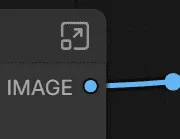
- Click and drag the output slot (the small circle) of an existing node.
- Release the connection in an empty area.
ComfyUI will open a filtered node list that only shows nodes compatible with that output type.
For example:
- Dragging a CLIP output will show nodes that accept CLIP inputs.
- Dragging a latent output will show nodes that work with latent data.
This makes building workflows much faster.
2. Installing Custom Nodes
The default nodes in ComfyUI are limited. Installing custom nodes greatly expands its capabilities.
Custom nodes can add features such as:
- ControlNet support
- Advanced image editing
- Prompt utilities
- Batch generation tools
Step-by-Step Installation
- Open Manager in the top navigation bar.
- Go to the Custom Nodes Manager tab.
- You can then:
Install Specific Nodes
Use the search bar to find nodes such as:
Efficiency NodesComfyUI Image Utils
Click Install, and ComfyUI will automatically download and install them.
Install Missing Nodes
If you load a workflow that requires nodes you don't have:
Click Install Missing Custom Nodes.
ComfyUI will automatically install all required nodes referenced by that workflow.
Important Step
After installing nodes, you must restart ComfyUI. Otherwise, the new nodes will not appear in the node menu.
Recommended Custom Nodes for Beginners
Some node packs are especially useful for beginners:
Efficiency Nodes for ComfyUI
- Adds workflow shortcuts
- Includes prompt templates
- Supports batch processing
ComfyUI Impact Pack
- Advanced image editing tools
- Mask processing
- Style adjustment utilities
Commonly Used Nodes
Preview Image
This node displays generated images inside the canvas without saving them to disk.
It is useful when you want to quickly check intermediate results.
Important Node Differences
Some nodes look similar but are designed for different models.
A common example:
Empty Latent Image vs Empty SD3 Latent Image
Empty Latent Image
- Standard 4-channel latent space
- Used for Stable Diffusion 1.5 and SDXL
Empty SD3 Latent Image
- 16-channel latent space
- Designed for newer models like SD3 or Flux
Using the wrong latent type may cause workflow errors or poor results.
3. Practical Node Interface Operations
Collapsing Nodes (Keep the Canvas Clean)
Each node has a small gray arrow in the top-right corner.
Clicking it will collapse the node, hiding its parameters and connection slots.
This does not disable the node. The workflow will continue to run normally.
Collapsing nodes is useful when working with large workflows containing many nodes.
Right-Click Node Options
Right-click any node to access additional tools.
Bypass
Temporarily disables the node.
The workflow will skip it and pass input directly to the next node.
This is extremely useful when debugging workflows.
Change Color
You can assign colors to nodes to visually organize your workflow.
Example:
- Red → Samplers
- Blue → CLIP nodes
- Green → Image outputs
Fix Node
Locks the node in place to prevent accidental movement.
Useful in large workflows where layout matters.
Delete
Removes the node from the canvas.
Be careful: deleting nodes may break connections.
Duplicate
Creates a copy of the node.
This is helpful when you want to reuse the same node with slightly different parameters.
Useful Keyboard Shortcuts
Keyboard shortcuts can significantly speed up workflow editing.
Basic shortcuts
Delete→ Delete selected nodeCtrl + C / Ctrl + V→ Copy and paste nodesCtrl + Z→ Undo the last action
Workflow editing
Ctrl + Drag Mouse→ Select multiple nodesCtrl + G→ Group selected nodesCtrl + B→ Bypass selected nodes
You can also select multiple nodes and use the Subgraph button to convert them into a subgraph.